Working on Waypoints
How to work with Waypoints, including: Creating Waypoints, Interacting with Waypoints and Editing Waypoint Details.
Written By Gareth Lloyd
WHEN using the FIDO smart app to locate a leak, always start your investigations from a Waypoint. This will save all your work, data and results in one place. You can come back to the Waypoint page at any time to check back on sessions and correlations you have carried out there previously.
Automatically Generated Waypoints
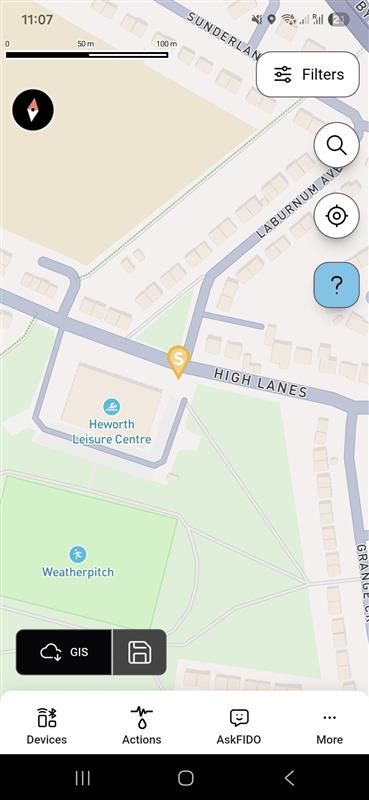
If you are using Network Monitor powered by FIDO AI, a new Waypoint will be generated by FIDO AI automatically when a FIDO sensor goes into alarm. The Waypoint will be shown on your home screen map as a coloured icon and a letter - S, M or L - depending on FIDO AI’s predicted size of the leak.
Creating Waypoints Manually
If you are not using FIDO sensors for network monitoring, you can create a Waypoint manually. There are two ways to do this. The first is to press and hold the location on the map where you suspect the leak is. The second is to stand at that location, press ‘Actions’ at the bottom of the home screen, and then select ‘Create a Waypoint’.
The first method will create a Waypoint at the location you pressed, the second will create the Waypoint at your GPS location. Once the Waypoint has been created, the app will go straight to an ‘Edit Waypoint’ page. Scroll to the bottom of this page and change the ‘Status’ field from ‘Marked up’ to ‘In progress’. Then, press ‘Submit’ to confirm the Waypoint has been created. This will return you to the home screen map.
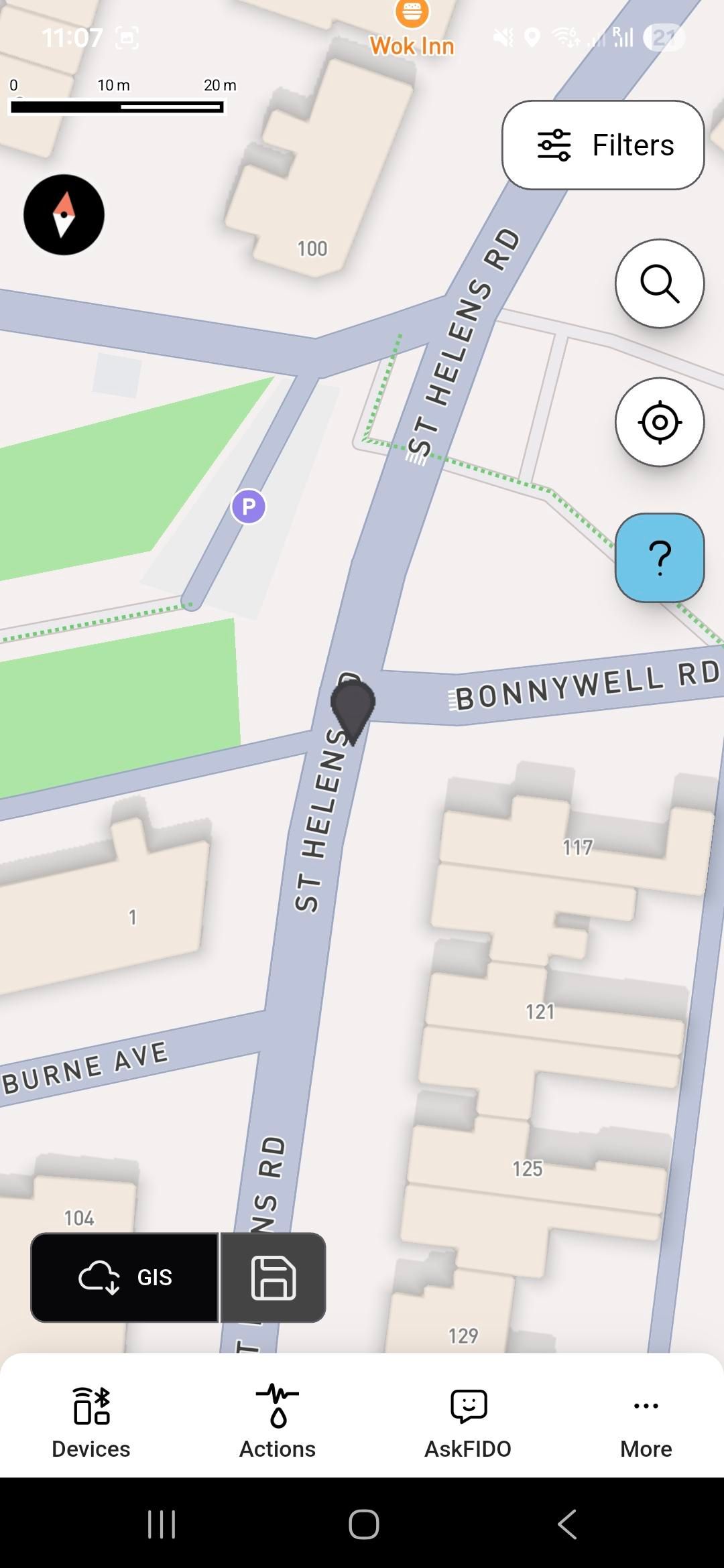
In-field Waypoints like these will show on the map as a black icon.
Interacting with Waypoints
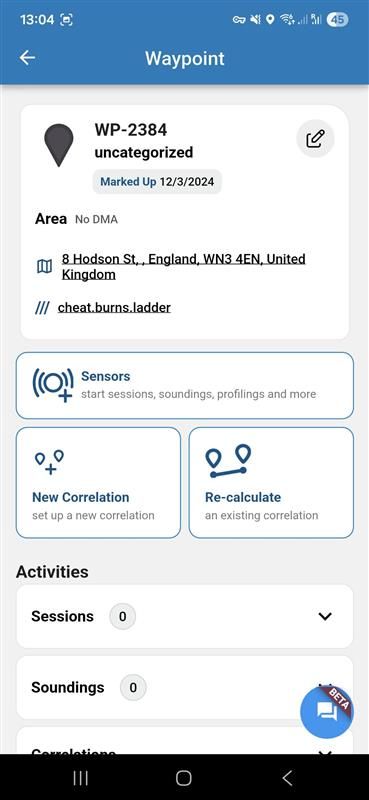
Pressing on any Waypoint icon will take you to its page. The Waypoint page shows you the Waypoint’s unique ID number, its street address and its What3Words location. Press on the address to copy it or open it directly with Google maps to get directions.
Further down the page, you can also select sensors to use at the Waypoint, set up a new correlation, or re-calculate a previous correlation; for instance, if you find out later that the pipe material was incorrect or the measurements were slightly wrong.
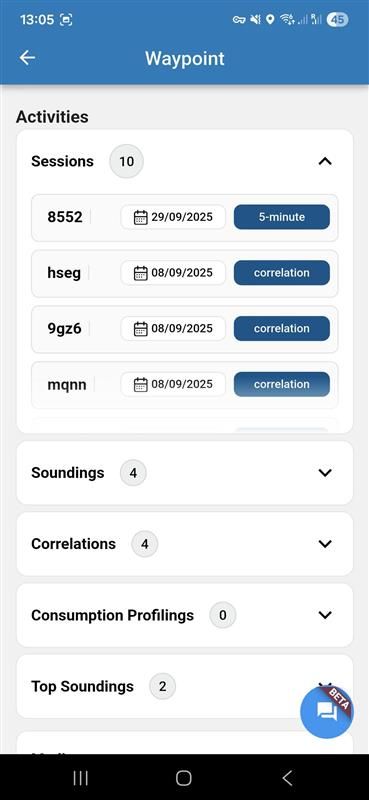
When you scroll down further, you can see all the activities that have been carried out at the Waypoint. The drop down menus will show you all the sessions and session IDs linked to that Waypoint. Pressing any session will take you to the session page where you can look at the results graph, check what frequency you are looking for, and if more than one session shows similar graphs prove that the noises are not random.
You can also view results from any Sounding Lite, correlation, Consumption Profiling or top sound activities that have been carried out at the Waypoint.
Further down, you can see any photos or videos that have been uploaded, as well as any notes that have been left by engineers that have visited the location previously.
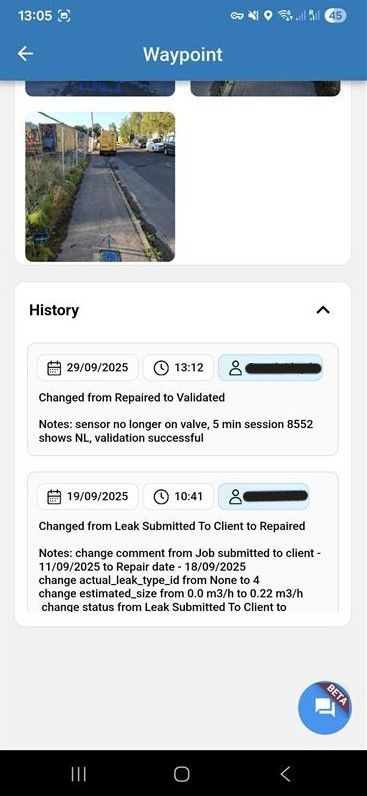
Editing Waypoint Details
To edit details of the Waypoint, go to the top of the Waypoint page and click the pencil icon in the top right corner. This opens the ‘Update Waypoint’ page. From here you can add any photos or videos by either taking the photo through the app, or by selecting photos from your gallery.
You can move the location of the Waypoint to the exact position of a leak, stand over the leak location and press the crosshair to the right of the address bar. This will move the Waypoint to the GIS location of where you are standing. The address details, W3W and latitude/longitude coordinates will fill in automatically.
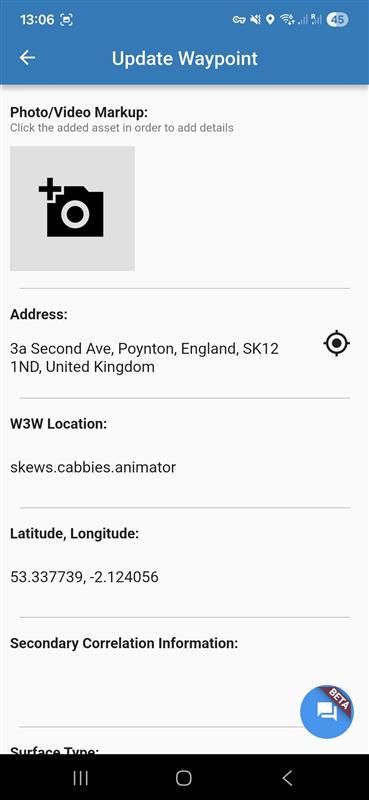
Scroll down the page to fill in as many details as required by the team who will come to repair the leak, including surface type, pipe material, pipe diameter and job code, to let them know what the suspected leak type will be.
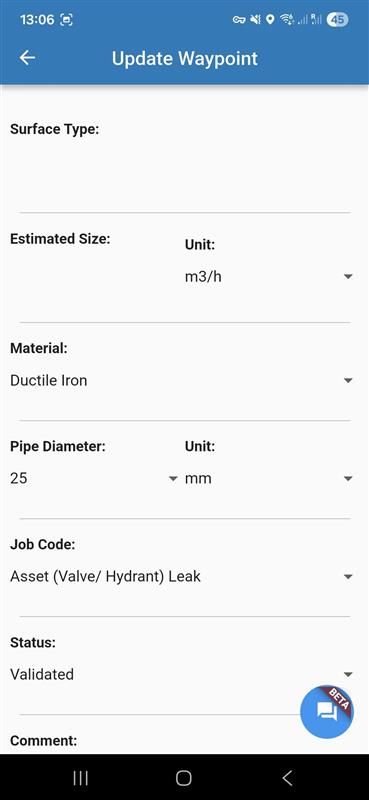
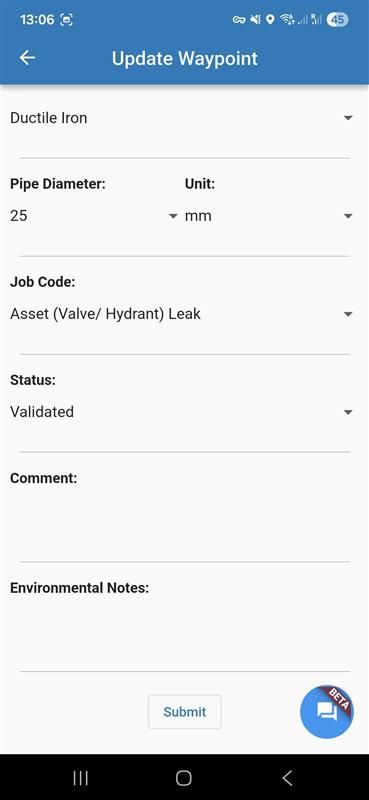
Finally select a status from the drop down menu and add other helpful comments to let other engineers know exactly what you have done in this location and environmental notes about the location so that whoever visits the site next will come prepared.
Don’t forget to click ‘Submit’ to save your details BEFORE you leave the page or you will lose them.
Was this helpful?
Still need help? Ask the team