Carrying out Correlations
How to carry out single and multiple 2-point correlations including: Setting up Correlations, Synchronizing and Deploying Sensors, Collecting Sensor Data, and Adding Pipeline Details
Written By Gareth Lloyd
-
CORRELATION is the cornerstone of leak detection. With FIDO sensors it is possible to run multiple 2-point correlations at the same time.
The key to carrying out FIDO correlations is collecting synchronized data recordings from known locations. Once you have the data you can run and re-run correlations between any two of those locations whenever and as often as you like. You can change pipe material, diameter and length data if you find out your earlier assumptions or as-laid plans were wrong.
Before You Start
We suggest that when you arrive at a Waypoint you carry out multiple 5-minute or Sounding Lite sessions on assets in the area first. This is because before correlating you need to confirm the leak noise is present on all of the assets where you are going to attempt to correlate. If you try to correlate from an asset where the noise is not audible then the correlation will be unsuccessful.
Set up Your Correlation Sessions
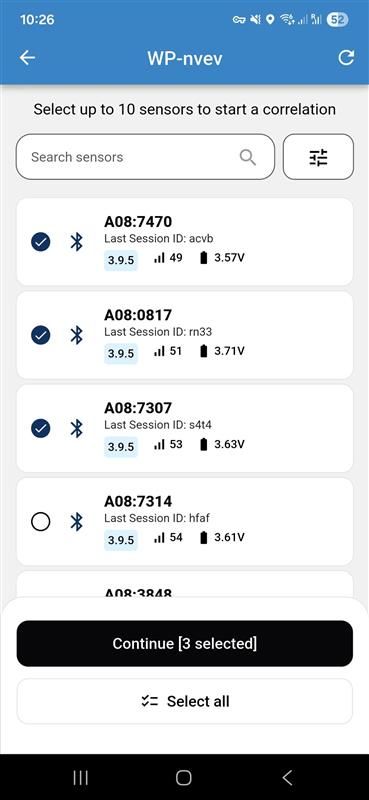
Once you have identified the assets with the best noise, it is time to start setting up your sensors. Open your app and click the icon of the Waypoint you are working on. Press ‘New correlation’ to open the the sensor selection page and choose the sensors you are going to correlate with. You can select up to 10 sensors depending on how many assets you want to correlate between. Select all the sensors you are going to use and hit ‘Continue’ to open the ‘Correlation setup’ page.
Collecting correlation data involves first synchronizing the sensors you’re going to use, then deploying them carefully to each asset and closing it behind you, waiting for the session recordings to complete, and then collecting all the sensors together again to upload the data to FIDO AI.
Start by having all the sensors you’re going to use close by. They need to be within 2m (6ft) of your phone to synchronize properly. Next, on the ‘Correlation setup’ page, select one of the the available deployment times from the menu. This sets the countdown clock you will see when you are deploying your sensors. Carefully consider how long it will take you to walk between all the assets, open each one, place a sensor on it, link it to the sensor in the app and close it. Recording will start automatically when the countdown clock ends.
You also need to choose a correlation type. With a ‘Quick’ correlation, the FIDO sensors will take two synchronized recordings over the space of two minutes. This is ideal for quiet areas with low usage. With a ‘Full’ correlation, the sensors will take five recordings over five minutes. This is better in areas that are noisier because the additional samples improve consistency.
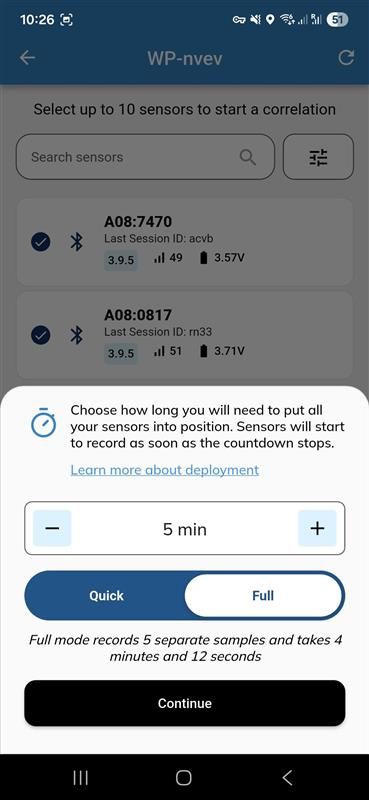
Press ‘Continue’ to start the synchronization process. A progress bar will appear in the app. It is VERY important that while the syncing process is being carried out that all sensors selected for the correlation remain within around 2m (6ft) of the phone so as not to lose their Bluetooth connection. Once the sync is complete, a message will inform you that the deployment time has started and a countdown clock will appear. Press ‘Go’.
Deploying Your FIDO Sensors
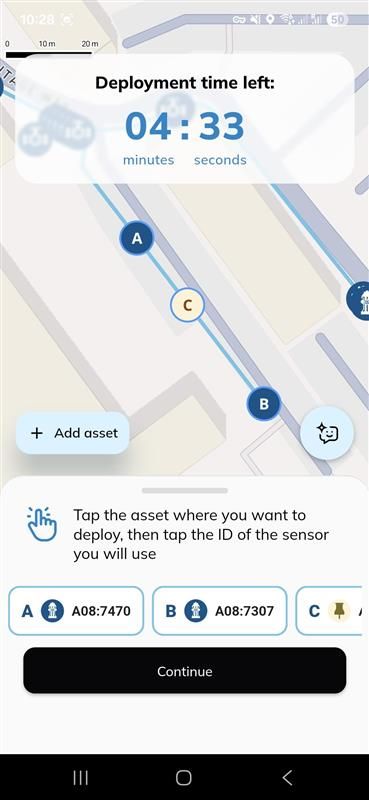
As you place each sensor, you need to tell the app where it is on your network. You will see a map of your current location in the app. If you have GIS available, it should be visible. If it is not visible, press ‘Refresh assets’ at the bottom left of the screen. Go to the first asset where you are placing a sensor. Press the icon of the asset on the map. The icon will change to the letter A. Then select the ID of the sensor you are placing there from the list. Close the asset, move to the next location and repeat the process until all the sensors are placed. The icon of the second asset you use will change to a letter B, the third will become a C and so on until all your sensors are placed.
If your selected asset does not show on your GIS data, press the ‘Add asset’ button. Then press on the map wherever you would like to place a temporary asset. An ‘Add temporary asset’ message will appear. Confirm it by clicking ‘Create asset’. You can now use the temporary asset as a location for your sensor. Repeat this until all sensors are deployed.
If you are not working with GIS then you will need to add temporary assets for every sensor.
Please note that any sensors that have not been deployed within the deployment time will not be included in the correlation.
Collect and Upload Your Sensor Data
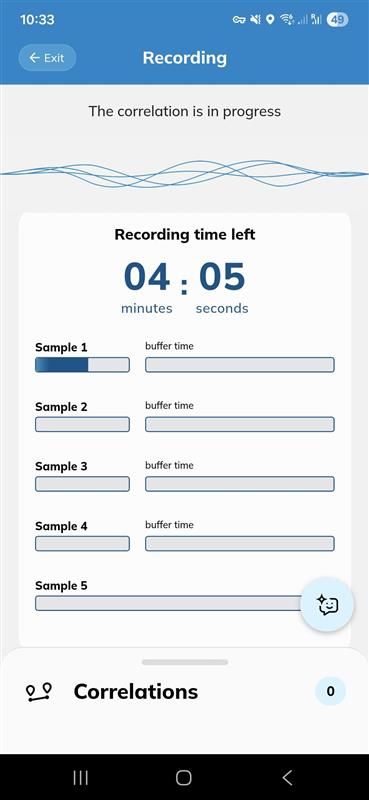
Once the deployment clock has finished, the sensors will start recording automatically. If you did not manage to complete your deployment within the time, then any sensors you did not place will not be available for correlation. A message will pop up stating that deployment time has ended, the screen will show the recording time that is remaining. When the countdown is complete you will see a list of sensors. At this point you can go and collect your sensors from the assets. You can either press ‘Upload’ on each individual sensor page as you collect it, or collect all sensors and select ‘Upload all’ at the bottom of the sensor list.
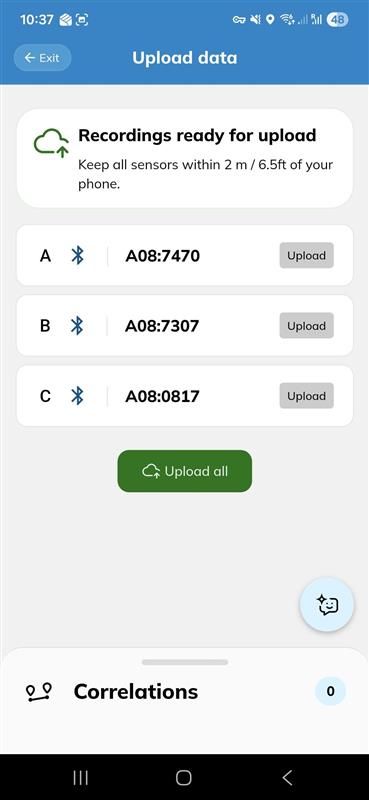
Add Pipeline Details and Setup a Correlation
Once data is uploaded, click ‘Set up a correlation’ to open the ‘Correlation set up’ page. You don’t need to wait until you have collected and uploaded your sensors to start setting up your correlations. You can do it any time. For instance, if you still have time left on the countdown once all sensors have been deployed you can press ‘Continue’ at the bottom of the page and and then ‘Set up a correlation’.
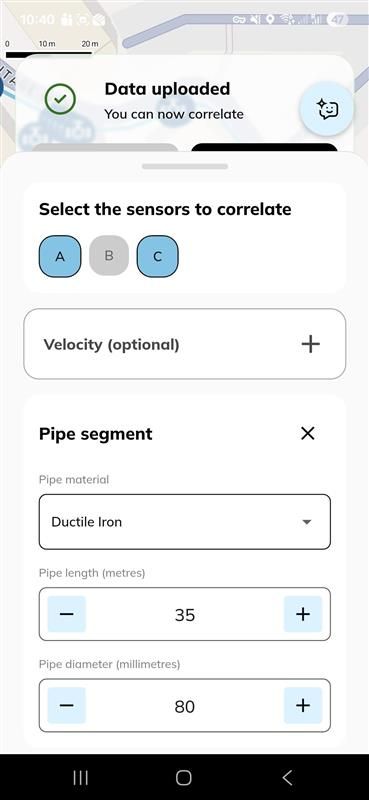
On the ‘Correlation set up’ page, select the two sensors you would like to correlate between first. If you are carrying out a single correlation sensors A and B will come up automatically, but if you are using multiple sensors you can run correlations between any two points, e.g A-C. Now click ‘Add at least 1 pipe segment’ and select the pipe material and diameter from the drop down menus and input the pipe length. If there are multiple type of pipe material between the two points pipe, add further segments by clicking ‘Add segment’. You can add up to five different pipe segments for any correlation but you must add them in the order they occur starting from sensor location A or earliest alphabetical letter in your 2-point correlation. When you have finished, select ‘Save settings’ to go back to the previous page. If you made an error while inputting the pipe information, you can press the three dots at the side of your saved correlation to edit it.
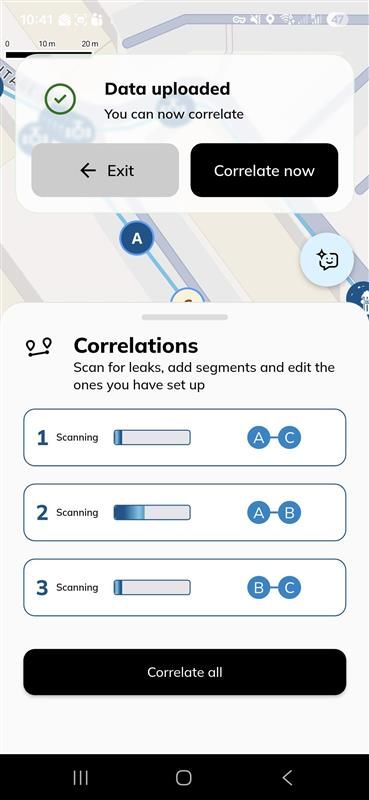
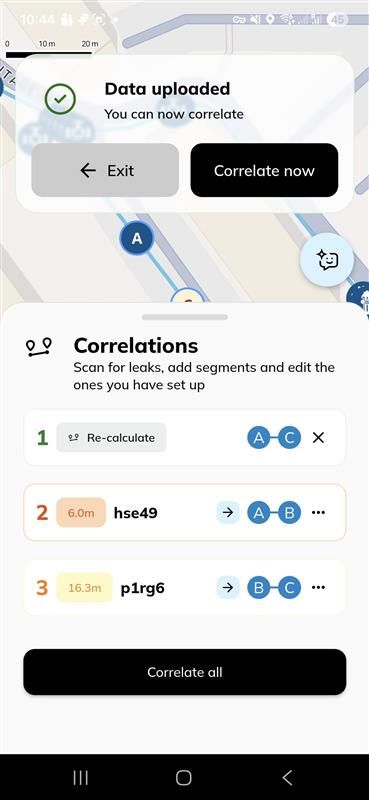
If you have any more correlations you would like to carry out, just press ‘Set up a correlation’ and add another in exactly the same way. Do this for as many 2-point correlations as you need. Then, select ‘Correlate all’. All your correlations will run simultaneously and you will see the results as a list. Click any one to view its ‘Correlation result’ page where you can view the correlation graph, pollen graphs for each sensor and the raw data for the correlation.
Was this helpful?
Still need help? Ask the team