Consumption Profiling
When and how to use Consumption Profiling to identify non-leakage.
Written By Gareth Lloyd
Consumption Profiling is a great feature for identifying non-revenue water which may not be leakage. It uses a single FIDO sensor to monitor flow activity in a pipeline over time. You can use this feature to identify consumer usage patterns and other potential water losses without installing a meter; for instance, unexpectedly high industrial usage overnight, or potential water theft from hydrants. It does not give you the volume of water being used, but it will let you visualise when water is being used and peaks in demand.
For Consumption Profiling, you instruct a sensor to sample sounds at regular intervals over a defined period of time. The intervals, times and durations are defined by you. The shortest interval is 5 seconds, which gives you very granular information about flow changes in a pipe. Here’s an example, you spot a sudden increase in water flow overnight in an industrial area which could be a significant leak. You place sensors on the inlet to several industrial user premises overnight. When you upload the session you will see that one of the industrial units you believed shut down overnight is actually using water. This is evidence that the increase in demand is not due to leakage.
Carrying out a Consumption Profiling Session
To set up a Consumption Profiling session, you first need to connect to a sensor. Where possible, connect to the sensor from a Waypoint page. This will store all your Consumption Profiling results in your app against that Waypoint so that you can come back and look at them any time. If you set up a session without linking it to a Waypoint you will not be able to go back to the data on the app after you have first seen it; you will only be able to review the data using the FIDO Hub.
Now press ‘Consumption Profiling’ to open the ‘Consumption Profiling’ page. This is where you define the times you want your session to start and end, as well as how frequently you want the sensor to sample flow noise.
First, click the drop down menu under ‘Interval’. This tells the sensor how often you want it to take a recording. This is shown as the number of seconds which will elapse between recordings. You can choose from once every 5 seconds all the way up to once every 600 seconds (every 10 minutes). The shorter the interval, the more detailed the consumption profile will be. Bear in mind that the sensor can only store up to 60,000 samples. This will limit the duration of detailed sessions. Ignore the ‘Number of samples’ box for now.
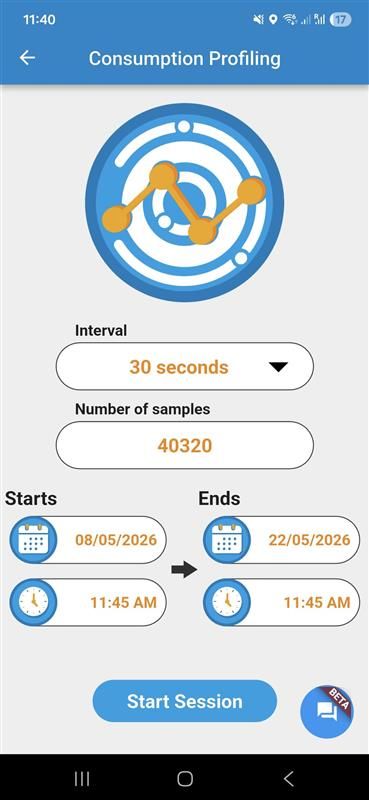
Now select the dates and times you want your Consumption Profiling session to start and end. Click the boxes next to the calendar icons to select dates. Click the boxes next to the clock icons to set times by moving the hands on the clocks. Doing this will auto populate the ‘Number of samples’ box. If this number exceeds 60,000, you will be prompted to reduce the number of samples before you start the session. Reduce the number by either bringing the end date forward or choosing a longer sampling interval.
Finally, press ‘Start Session’ at the bottom of the page to view a summary page confirming that the session has been programmed. This page shows the CP-ID, number of samples and the sample interval.
Press the back button to go back to the sensor selection screen. If you have programmed the Consumption Profiling session to start at some point in the future, your selected sensor will still show as available by displaying the 'Bluetooth’ icon next to it. This icon will change to a black Consumption Profiling icon when the sensor takes its first sample. Take care not to use this sensor for other activities accidentally.
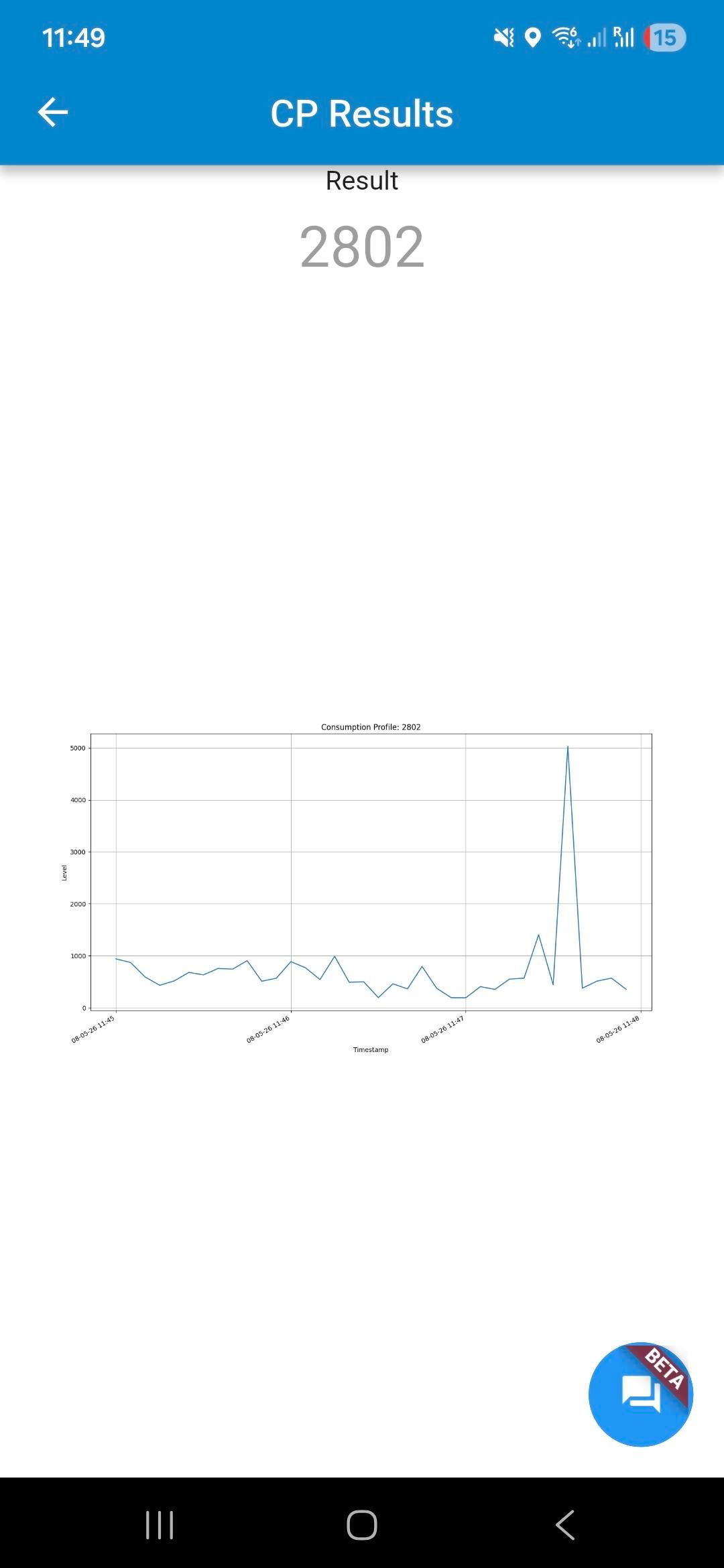
When the recordings are complete the CP mode icon will change from black to green and it is time to upload the data. To do this, connect to the sensor and press ‘Upload’. You will then be taken to the graph that will show you the flow over the time period you input. The higher peaks on the graph indicate greater flows. You can zoom in and move around the graph using your fingers.
Was this helpful?
Still need help? Ask the team